UPDATE:
Add a system environment variable using name “NODE_ENV” with value “production” and restart Claude Desktop. Now you can directly add only DeepSeek models to the model list without need to manually modify the config json file mentioned in this post:
deepseek-v4-pro
deepseek-v4-flash
======================================
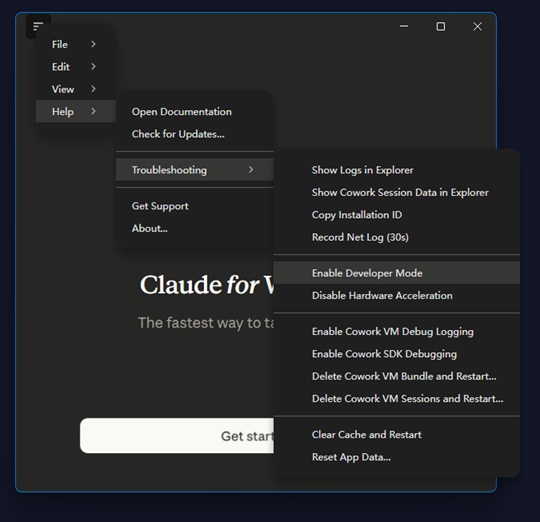
To use DeekSeek v4 in Claude Desktop, enable Developer mode in Claude Desktop first. Top left conor main menue –> Help –> Troubleshooting –> Enable Developer Mode. This will relaunch Claude Desktop.
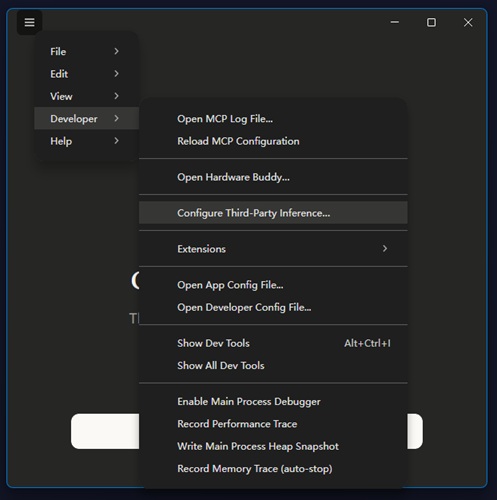
After relauch, main menue –> Developer –> Configure Third-Party Inference
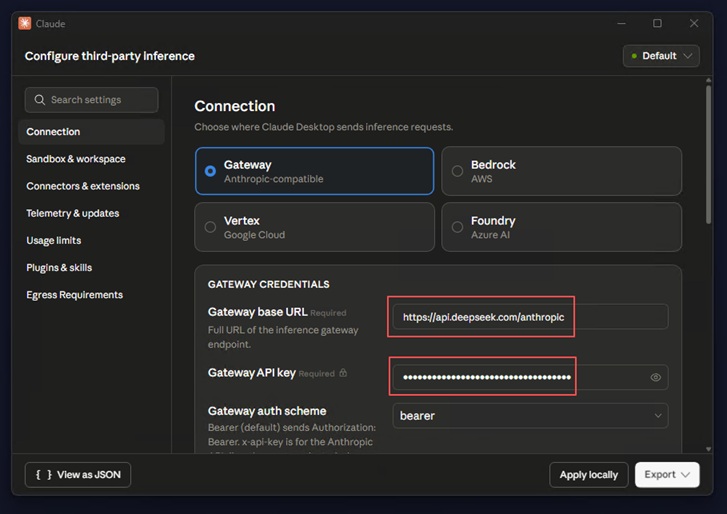
Scroll down, in IDENTITY & MODELS section, add following models to the Model list and enable “Offer 1M-context variant” option for each model:
claude-4-6-sonnet
claude-4-7-opus
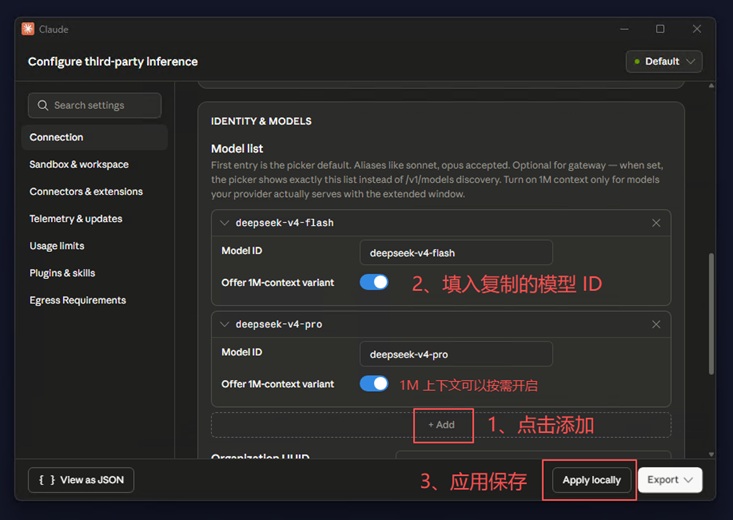
Click on “Apply locally” to apply the change and restart Claude and then come back to this interface again. Click on the top-right connor the configurations dropdown list and select “Show in Explorer”. This will open the folder (C:\Users<your login>\AppData\Local\Claude-3p\configLibrary) where the config json file is located. The config file using GUID as the file name. Open the config file and “env” variable to alias anthropic model names to DeepSeek models. Save the change and restart Claude and you are ready to use DeepSeek in Claude.
A full example json config file as following:
{
  "inferenceProvider": "gateway",
  "inferenceGatewayBaseUrl": "https://api.deepseek.com/anthropic",
  "inferenceGatewayApiKey": "your api key",
  "inferenceModels": [
    {
      "name": "claude-4-6-sonnet",
      "supports1m": true
	},
	{
      "name": "claude-4-7-opus",
      "supports1m": true
	}
  ],
  "primaryModel": "claude-4-6-sonnet",
  "env": {
	  "ANTHROPIC_DEFAULT_OPUS_MODEL": "deepseek-v4-pro[1m]",
    "ANTHROPIC_DEFAULT_SONNET_MODEL": "deepseek-v4-flash"
	}
}
Note: if you manually modified the json file, take a copy of your modification. If you ever open or make change to the config via the Connection UI, your manual modification to the file more likely will be lost.
To have “Bypass permissions” option enabled, click on the left-bottom dropdown –> Settings –> Claude Code –> Local sessions –> turn on “Allow bypass permissions mode”.